How to Sync DroneDeploy Maps Directly into Procore Projects
.svg)

Quick Summary
The DroneDeploy Procore integration pushes aerial maps, 360 panos and field notes directly into Procore Photos while pulling Procore drawings into DroneDeploy as overlays. Teams on Business and Enterprise plans can configure auto-export so new captures sync without manual steps.
Construction teams running both DroneDeploy and Procore manage site documentation across two platforms. Aerial maps live in one place, project drawings in another and the field crew toggles between logins to piece together the full picture. The DroneDeploy Procore integration connects these systems so aerial maps, panos and field notes push directly into Procore while drawings pull into DroneDeploy as overlays.
In this blog you'll find setup steps, sync options and troubleshooting to configure the connection for your projects. Let's get into it.
Tutorial on setting up Procore integrations in DroneDeploy
What the DroneDeploy Procore Integration does
The integration connects reality capture data to Procore's project management environment through a two-way data flow. Aerial orthomosaics, panos, standard photos and field notes export from DroneDeploy into Procore Photos, while Procore drawings import into DroneDeploy as georeferenced overlays.
Once the connection is active, project teams view DroneDeploy data inside Procore through the embedded app without a separate login. [Procore](https://www.procore.com) is a cloud-based construction management platform used by teams to manage drawings, photos and project documentation.
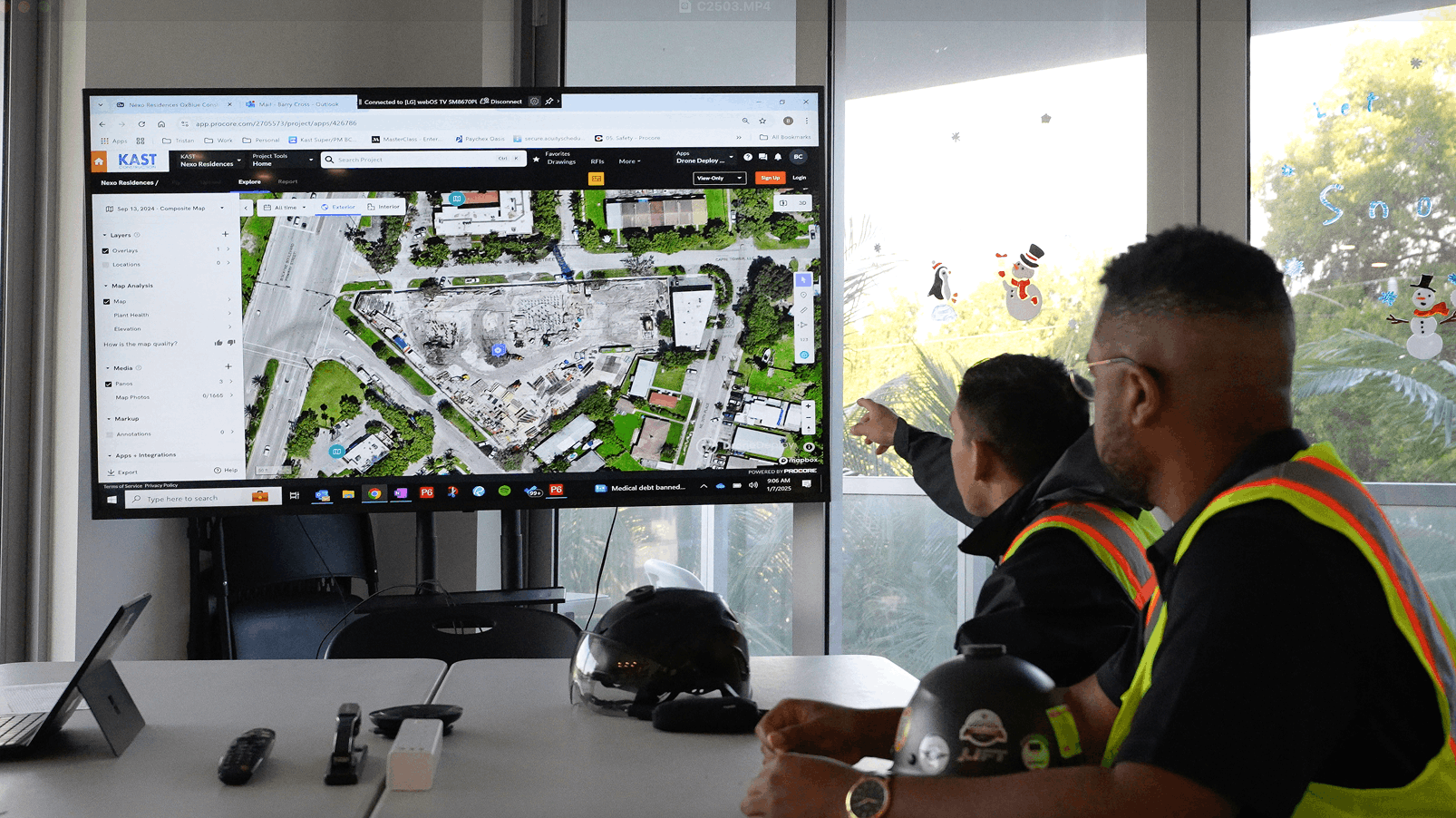
The integration determines what gets connected and where it appears based on how you link each DroneDeploy project to its corresponding Procore project. The integration links your capture platform to your project management system.
Data types that sync:
- Aerial maps: Panos and photos can be auto-exported to Procore Photos or Documents.
- 360 panos: Captured panos sync to the project photo album with location data intact
- Field notes:Annotations and observations can be pushed to Procore as documented records
- Procore drawings: Floor plans and sheets pull into DroneDeploy for overlay comparison
Who has access to the Procore integration
The DroneDeploy Procore integration is available for customers on DroneDeploy Business and Enterprise plans. See the DroneDeploy pricing page for a full comparison of plan features.
Users with admin access in both platforms handle the initial configuration. Standard users can view synced data and use the embedded app after setup is complete.
.png)
How to connect DroneDeploy to Procore
Connecting the two platforms for the first time takes a few minutes and requires admin access in both systems. The process involves installing the app, authenticating your Procore account and linking individual projects. Once complete, the connection persists until manually disconnected.
1. Install the Procore app in DroneDeploy
Navigate to the DroneDeploy App Market and locate the Procore app. Click to install it, and the app becomes available across your organization. This installation only happens once per DroneDeploy organization, though each project still requires individual linking.
2. Authenticate your Procore account
After installation, you will see a prompt to authenticate. The process uses OAuth authentication. Sign in with your Procore credentials and grant access when prompted.
3. Link your DroneDeploy project to a Procore project
For each DroneDeploy project, select the corresponding Procore company and project from a dropdown list. This pairing determines where your exported maps will be sent and which drawings can be pulled into DroneDeploy. You can only link one Procore project per DroneDeploy project, so choose carefully if you manage multiple Procore projects under the same company.
How to export aerial maps to Procore Photos
There are two methods for moving aerial data from DroneDeploy into Procore Photos. Manual export gives you control over exactly what gets sent and when. Auto-export handles the transfer automatically whenever new data is processed.
.jpeg)
Exporting maps manually
Select a map or pano within your DroneDeploy project and choose the Export to Procore option. Confirm the destination album in Procore, and the exported files will appear in Procore Photos within minutes. This approach works well when you want to send specific captures rather than everything.
Setting up auto-export to Procore
To automate the process, enable auto-export in your DroneDeploy project settings under the Procore integration section. Find the auto-export toggle and turn it on. Once enabled, any newly processed map or newly uploaded pano will automatically push to the linked Procore project without manual intervention.
How to add Procore drawings as overlays in DroneDeploy
The integration allows you to pull drawings from Procore into DroneDeploy for visual comparison. Drawings overlay on aerial maps or serve as floor levels for interior 360 walks. The following sections cover both use cases.
Adding drawings as map overlays
Import a drawing from the linked Procore project and position it over your aerial map. This process involves georeferencing the drawing to your site coordinates. You can then toggle the transparency of the overlay to compare design intent against as-built conditions on the ground.
Adding drawings as floor levels
For vertical construction projects, Procore floor plans can be imported as distinct levels in DroneDeploy Ground. This allows 360 walks and other interior captures to be mapped to their specific floor within the building. When you navigate through a 360 walk, the correct floor plan appears as the reference layer.
Enabling auto-sync for drawing revisions
Enable the auto-sync setting for drawings to keep your overlays current. When this is active, any revised drawing versions published in Procore will automatically pull into DroneDeploy. Revised drawing versions published in Procore pull into DroneDeploy automatically, so manual re-uploads are not required when the design team issues new sheets.
What syncs automatically between DroneDeploy and Procore
The following data types can be configured to sync automatically from DroneDeploy to Procore, while others require manual export.
- Aerial maps and panos:When auto-export is enabled, processed orthomosaics and aerial panos sync to Procore Photos with original file format and resolution preserved
- Media pins and annotations: Pins placed on a map in DroneDeploy, including any attached photos or notes, sync to Procore with location data carried over
- Field notes: Notes created in DroneDeploy sync to Procore as observations with author, timestamp and location metadata included
The DroneDeploy Procore integration sync is one-way for most data types, flowing from DroneDeploy to Procore. Drawing imports from Procore into DroneDeploy are the exception.
How to embed DroneDeploy data directly in Procore
The Procore Embedded App feature allows team members to view DroneDeploy project data directly within the Procore interface. Team members do not need to leave Procore or log into a separate platform. This is particularly useful for subcontractors and stakeholders who may not have DroneDeploy credentials.
A Procore administrator configures the embedded app by adding the DroneDeploy app to the project's tools. Once configured, project members can view the embedded DroneDeploy data without needing their own DroneDeploy login. The embedded view shows maps, panos and other synced data in context with the rest of the Procore project.
> Tip: Periodically check for updates to the embedded app from within Procore's administrative settings to ensure you have the latest features and fixes.
Keep your site record and project data in one workflow
With the connection active, teams reference site data in both DroneDeploy and Procore. As work progresses, new aerial captures sync to keep the project documentation in Procore current. The record stays accessible from early planning through closeout.
Book a demo to see how the integration works with your existing Procore setup.
.png)
FAQ
Yes. The Procore Embedded App allows users with Procore access to view DroneDeploy project data without requiring a separate DroneDeploy login. Trade partners already working in Procore can view site documentation without additional credentials.
Yes, a single DroneDeploy organization can connect to multiple Procore companies. You can then link individual DroneDeploy projects to the appropriate Procore project within each respective company. General contractors managing work across different owners or regions can link projects to their respective Procore companies.
Initial exports for most projects complete within minutes. Projects with extensive historical data or very large files may take longer to sync. The process runs in the background without blocking other work.
Any data that has already been exported to Procore will remain in Procore Photos. However, future captures and updates will not sync until the connection is re-established through the authentication process. Previously synced data remains accessible in both platforms.



Ready to learn more?
Contact sales to see how DroneDeploy can give your teams the power to document and analyze your sites from the air and ground – all in one AI-powered platform.